
Home / User guide
The EarnIt guide.
Everything you need to set up EarnIt and run it well. If you’ve only got ten minutes, read Getting started and Setting up, then let a week run.
Start here
Getting started
EarnIt is one app with two sides: a grown-up side for setting things up and approving, and a child’s side for doing the work and watching the money. You install the same app everywhere.
What you need
- An iPhone or iPad running iOS 26 or later.
- Your Apple Account signed in with iCloud Drive turned on. Your household lives in your own iCloud, not on our servers.
- About ten minutes, mostly spent deciding what your children actually do around the house.
The first time it opens
- Download EarnIt from the App Store.Coming soon. Get told when it’s out.
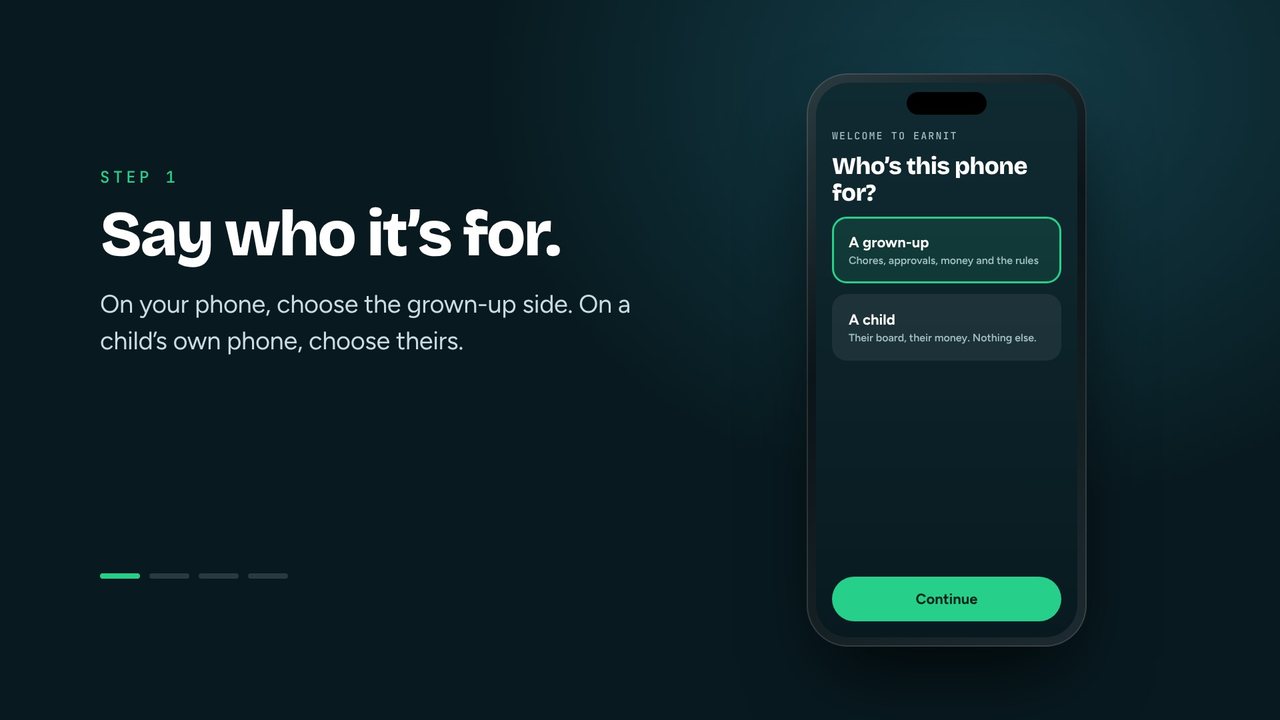
- Say who it’s for.On your phone, choose the grown-up side. On a child’s own phone, choose the child’s side and it will open on their board from then on.
- Start a new family, or join one.Only one grown-up sets the family up. Everyone else joins it, and then you all see the same thing.
Start here
Setting up
A guided setup walks you through nine short steps. Each one explains what it does and how it changes what your child sees. You can leave at any point and pick up where you left off.
| Step | What you decide |
|---|---|
| Household | Its name. |
| Grown-up | You, and your household PIN. |
| Children | First names and a level for each: Younger, Standard, Older or Teen. No ages, no dates of birth. |
| Money | What a week is worth, and how it splits into Spend, Save and Give. |
| Jobs | Pick from a library of forty, each with a suggested weight. |
| Your own jobs | Anything specific to your house. |
| Values | Which of the ten values to use, or turn the feature off. |
| Rules | Optional extras such as interest, sibling visibility and trading, each set up with its own mini-wizard. |
| Devices | Getting the child’s side onto their phone or a shared iPad. |
Start with two or three jobs, the ones that cause arguments in your house. Families who enter twelve on day one tend to give up by day four. You can add more any time.
When you set what a week is worth, choose an amount you’d genuinely hand over. The whole app is built on that number meaning something.
Start here
Choosing jobs and weights
Every job has a weight, which is how big a share of the week it’s worth. Emptying the dishwasher might be 5; making the bed might be 2. On payday the weekly pot is shared out by the weight actually done. When you pick a job, a setup card shows what that weight means in money before you commit.
When jobs happen
- Every day, weekdays, weekends or chosen days, with an optional time.
- Several times a day, like teeth: both brushes need ticking before it counts, and it counts once.
- Any day, this many times a week, for jobs that turn up at random (dishwasher, shopping). These open slots for the week, and one that never came up never counts against them.
- Once, for a one-off job.
Taking turns
With more than one child, a job can rotate between them by day or by week. Whose turn it is follows from the start date, and a child who’s away that week is skipped.
Guides and proof
Fourteen jobs come with step-by-step guides, and you can edit the steps or write your own. A job can also require a photo, or require its guide to be finished, before it can be ticked off.
Start here
Getting it onto their devices
A child’s own phone or iPad
- On your phone:open the grown-up side, go to Devices and create a code for that child.
- On theirs:install EarnIt, choose the child’s side, and scan the QR square or type the six characters.
- That’s it.Their phone opens straight on their board from now on. There’s no account, email or password.
Codes work once and last ten minutes, so pairing needs you in the same room. You can revoke any device from the Devices screen.
A shared family iPad, or your own phone
No code is needed. Add the child’s side on the same device and EarnIt asks who’s using it each time it opens. Each child can have a four-digit PIN so nobody ticks off their sister’s jobs, and the grown-up side always needs the six-digit household PIN.
No devices for the children at all?
That’s fine. Use Everyone’s today on the grown-up side to tick off every child’s jobs from one screen.
Every week
The daily loop
This is the whole product. If it feels right, everything else follows.
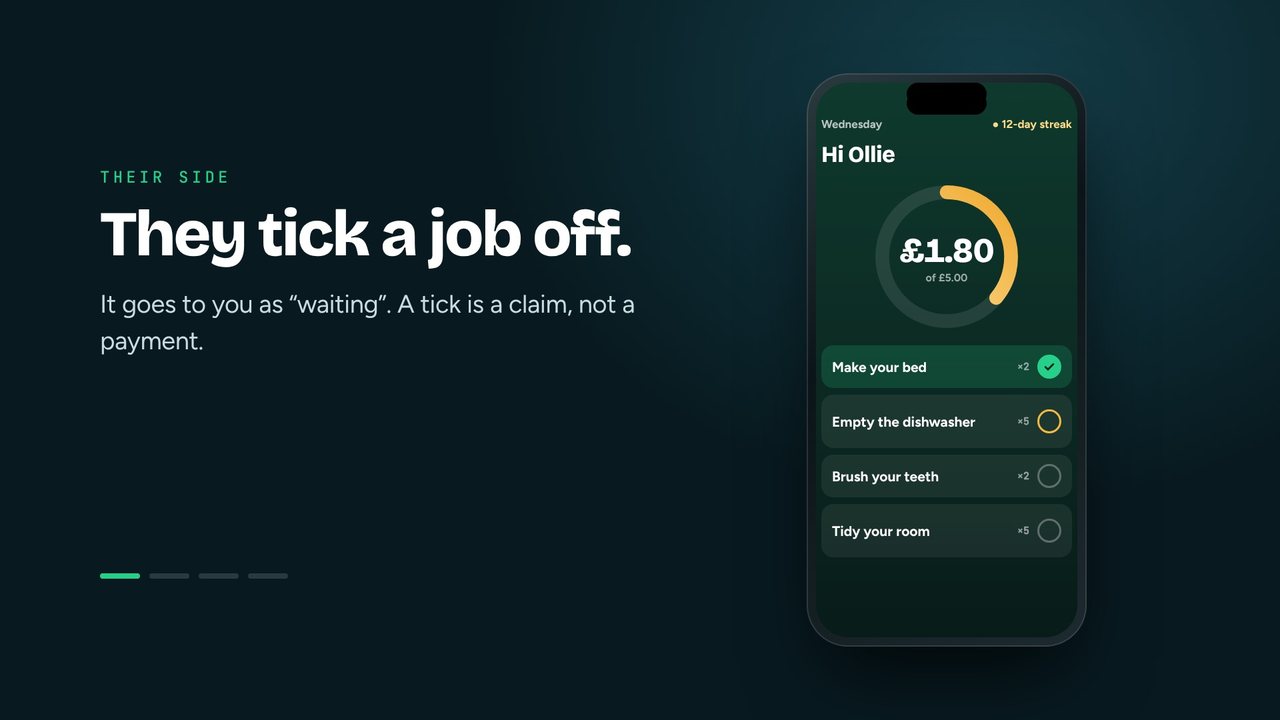
- They tick a job off.It goes to a grown-up as “waiting”. A tick is a claim, not a payment.
- You approve or hand it back.Approve from the notification, the widget, or the Waiting for you queue. Handing it back can include a note, and they can redo it.
- The money moves.The week’s ring fills, XP lands, and the streak ticks on.
Approved something by mistake? Anything signed off in the last twelve hours stays on screen with an undo next to it.
Every week
Payday
Once a week, one sheet settles it: what was on offer, what was done, what it comes to, and how it splits across Spend, Save and Give. Confirm it and the money moves. It moves exactly once, whatever else happens.
- Anytime jobs: payday asks how many times each one actually came up. It defaults to the generous answer, and extras beyond the expected count pay as a bonus.
- The recap: under each child, a plain-English summary of the week, like “34 of 38 shares were genuinely on offer”.
- Self-correcting: after four weeks of the same answer, EarnIt suggests changing the schedule to match.

Every week
Money in, money out
- Pay out: record handing money over. It comes from Spend by default, so savings stay put.
- Add money: birthday money, gifts or a one-off, with a note.
- Correct: take some off or adjust a pot. It’s written as a visible adjustment, never a silent edit.
- Requests: when a child asks for money or a reward, it lands next to your approvals. Pay in full, pay part, or decline with a reason. They always get an answer.
- Job offers: a child can propose a job and name a price. Accept it, decline with a reason, or counter-offer.
- Going halves: promise part of a goal. It goes in automatically the moment they’ve saved their share.
- Interest (optional): pay your own interest on the Save pot, at a rate and frequency you choose.
Every week
The child’s side
What your child sees depends on the level you chose, and you can change it any time from their profile. Once a year EarnIt checks with you whether the level still fits.
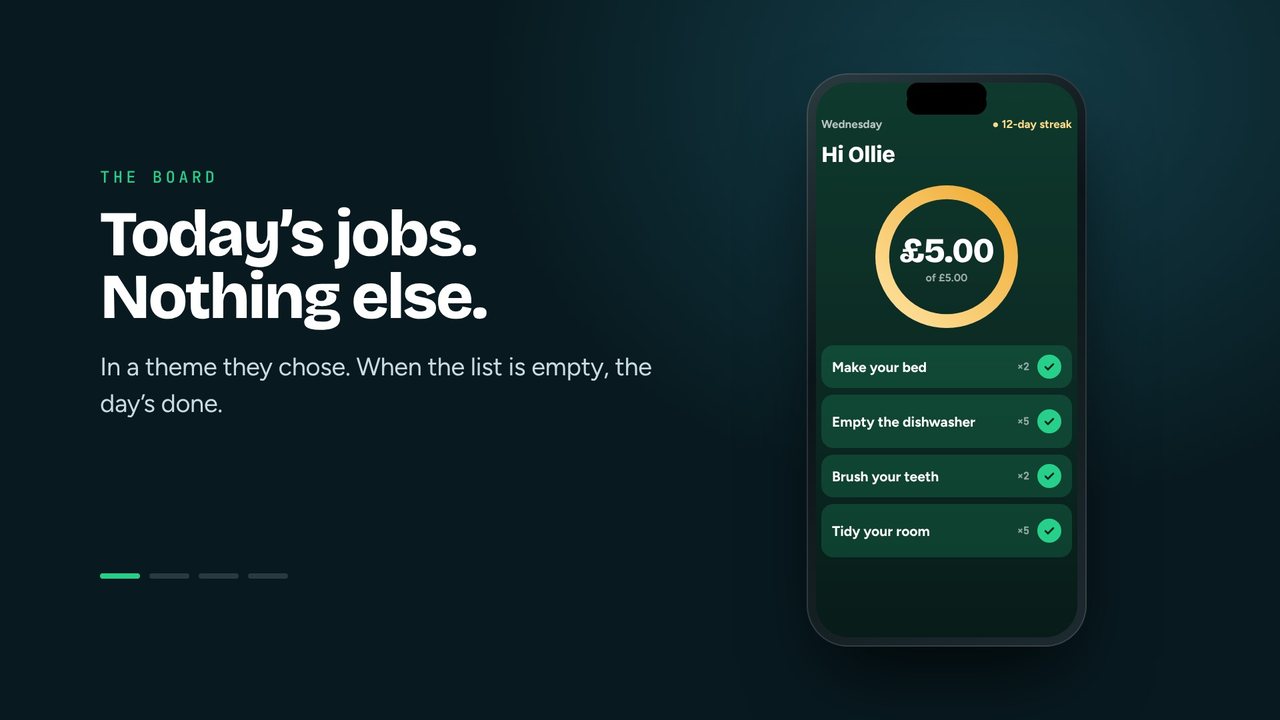
- Board: today’s jobs, then the week’s anytime jobs.
- Money: balance, pots, payday countdown and history. Older levels can move money between their own pots.
- Goals and wishes: a target, an optional date, and the effort price.
- Rewards shelf: things you offer that aren’t money, priced in money or XP.
- Progress: streak (with one rest day a week), XP, levels, 26 badges and a companion.
- Themes: thirty worlds. Eight are open from the start, and the rest unlock through values.
Every week
Values: noticed, never paid for
When you see your child being kind, honest or brave, write it down in your own words. They’ll read it, and the value grows through six stages: Spark, Glow, Shine, Bright, Radiant, Beacon.
- It only ever goes up. Marking that a moment fell short dims the value for the rest of the day, then it’s back. Nothing is taken away.
- It’s never money. Credits unlock themes and growth, and nothing else.
- Siblings can nominate each other, and a grown-up agrees.
- If you log more wobbles than good moments over a few weeks, EarnIt will gently tell you. That’s deliberate.
Values are optional. Switch any of them off, rewrite them, or add your own.
Situations
Holidays and away days
Mark an away period for one child or the whole family, and choose whether the pocket money pauses too. Away days shrink what was on offer rather than counting as misses, and the streak is protected.
Situations
Two homes
Each home runs its own EarnIt on its own Apple Account. The child’s side joins both.
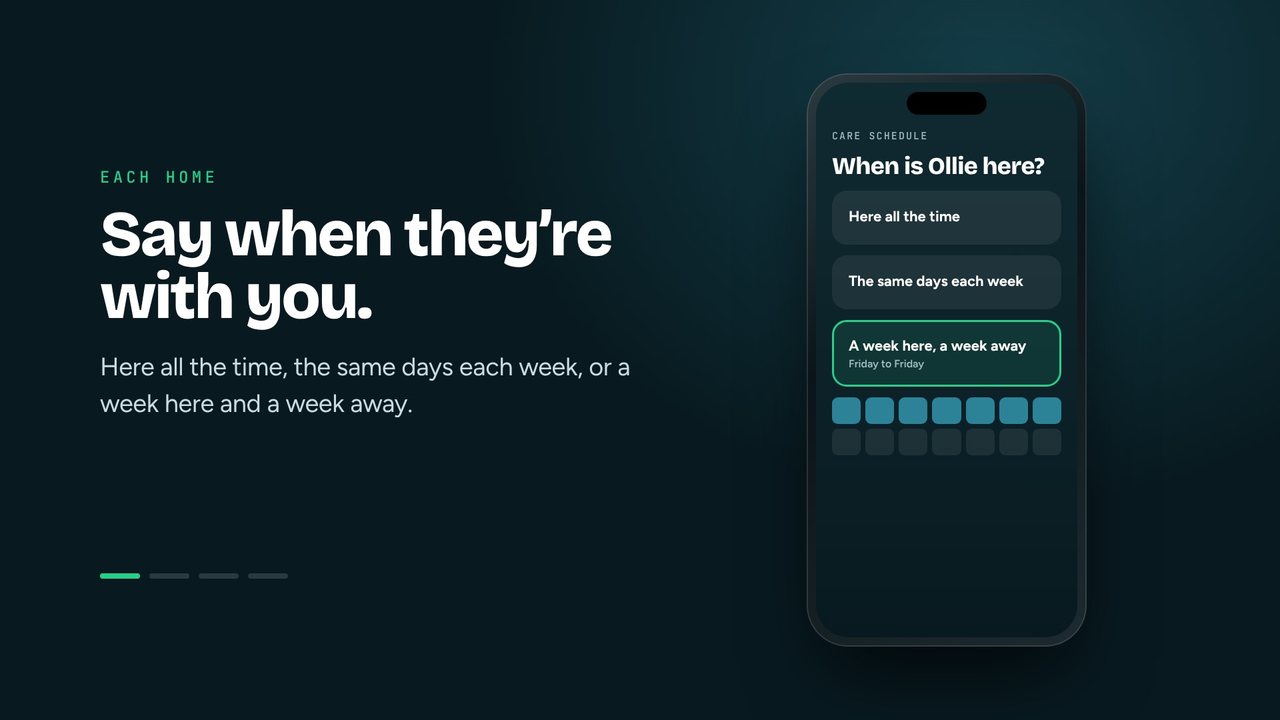
- Set the care schedulein each home: here all the time, the same days each week, or a week here and a week away.
- The second home creates a codefor the child in Devices. It must be the code with the child’s name on it.
- On the child’s side:Money → scroll to the bottom → “another home” → scan. Later homes are added from the switcher menu → My homes → Add another home.
- Confirm the nameif asked. “Ollie” and “Oliver” get a quick “Is this you?”. Say no and nothing from that home is counted.
Situations
Widgets and notifications
Long-press your Home Screen, tap Edit → Add Widget, and choose EarnIt. On the grown-up side, Waiting for you lets you approve straight from the Home Screen. On the child’s side, Today on the Lock Screen keeps the day in view.
Allow notifications on both sides. Grown-ups hear about jobs to approve (a burst comes through as one updating alert), values nominations and payday. Children hear when jobs are due, when something’s approved or handed back, and when money lands.
Situations
PINs, devices and backup
- Household PIN: six digits, set the first time you use the grown-up side. You need it to get back to the grown-up side on any shared device.
- Child PINs: optional, four digits, for shared iPads.
- Devices: every phone with the grown-up side is listed. Revoke one and it goes back to the “who’s this?” question.
- Backup: export the whole household to a file you keep, and restore from it.
Situations
Troubleshooting
A child’s device isn’t showing new jobs
Check that both devices are online and signed in to iCloud with iCloud Drive on. Open EarnIt on both, since changes sync when the app is active. If it still sticks, revoke the device in Devices and pair it again with a fresh code.
The code won’t work
Codes last ten minutes and work once, so create a fresh one. Make sure it’s the code for the right child. A grown-up’s code on a child’s side is refused on purpose.
Reminders stopped arriving
Check Settings → Notifications → EarnIt is allowed. Opening the app once reschedules everything, and EarnIt also catches up on anything you missed when it opens.
I forgot the household PIN
Contact us at [email protected] and we’ll walk you through it.
The money looks wrong
Open the child’s week recap and ledger first. Every movement is listed with a reason. If you still can’t account for it, screenshot it before changing anything and email us.
Still stuck? Get in touch.